

“Have we already contacted them?”
Lists multiply. Context gets lost. Checking who received which message slows down every new introduction.
Let your DM Agent handle TikTok Shop outreach and follow-ups, so your team can focus on turning replies into partnerships.


When outreach becomes admin
Copy the message. Check the list. Set another reminder. When every introduction needs its own manual process, keeping conversations moving becomes a job in itself.
Lists multiply. Context gets lost. Checking who received which message slows down every new introduction.
Scattered reminders make it easy to miss the right moment to follow up.
Scattered messages and notes make it hard to see which campaigns get replies.
Manual outreach vs. DM Agent
Your team chooses the audience, approves the offer, and handles creator conversations. Your DM Agent organizes the messages, follow-ups, and tracking. Here’s how the workflows compare.


From your first message to your next creator partnership. Set up, launch, and track your outreach in six steps.


Feature highlights
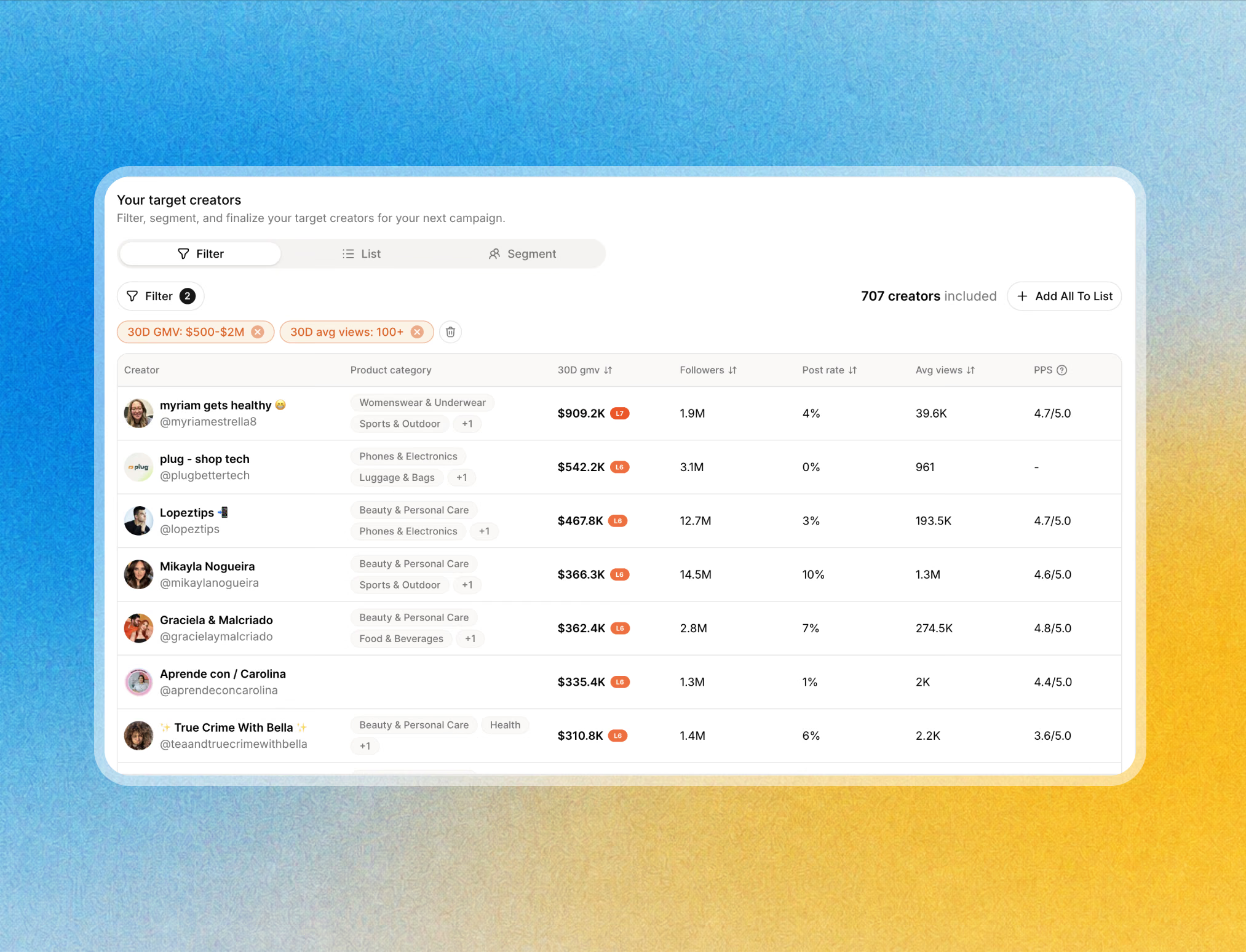
Filters, lists, segments, and exclusions help define who receives each campaign.
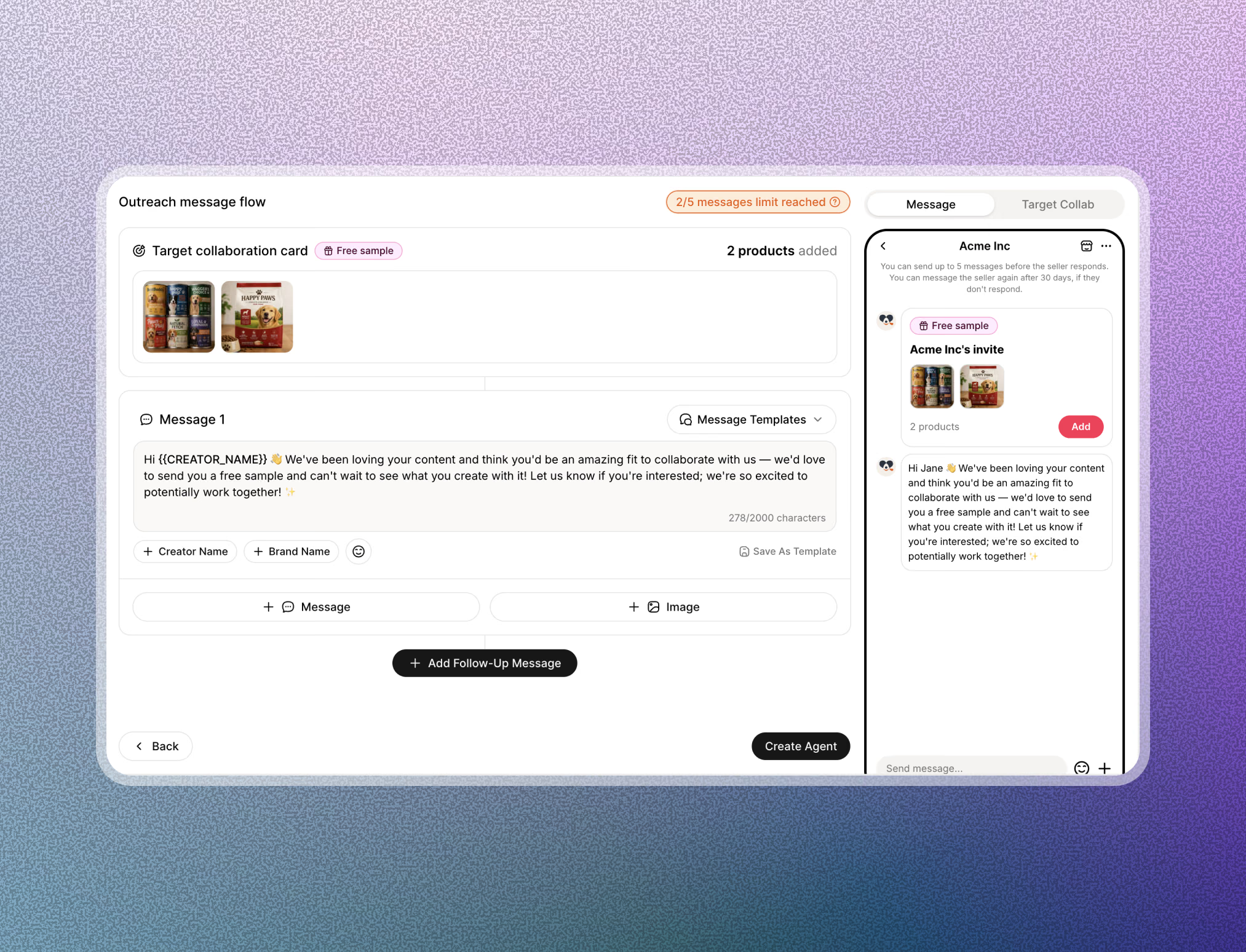
Creator variables and saved templates help your team prepare relevant introductions.
Add an image when it helps explain the product or opportunity.
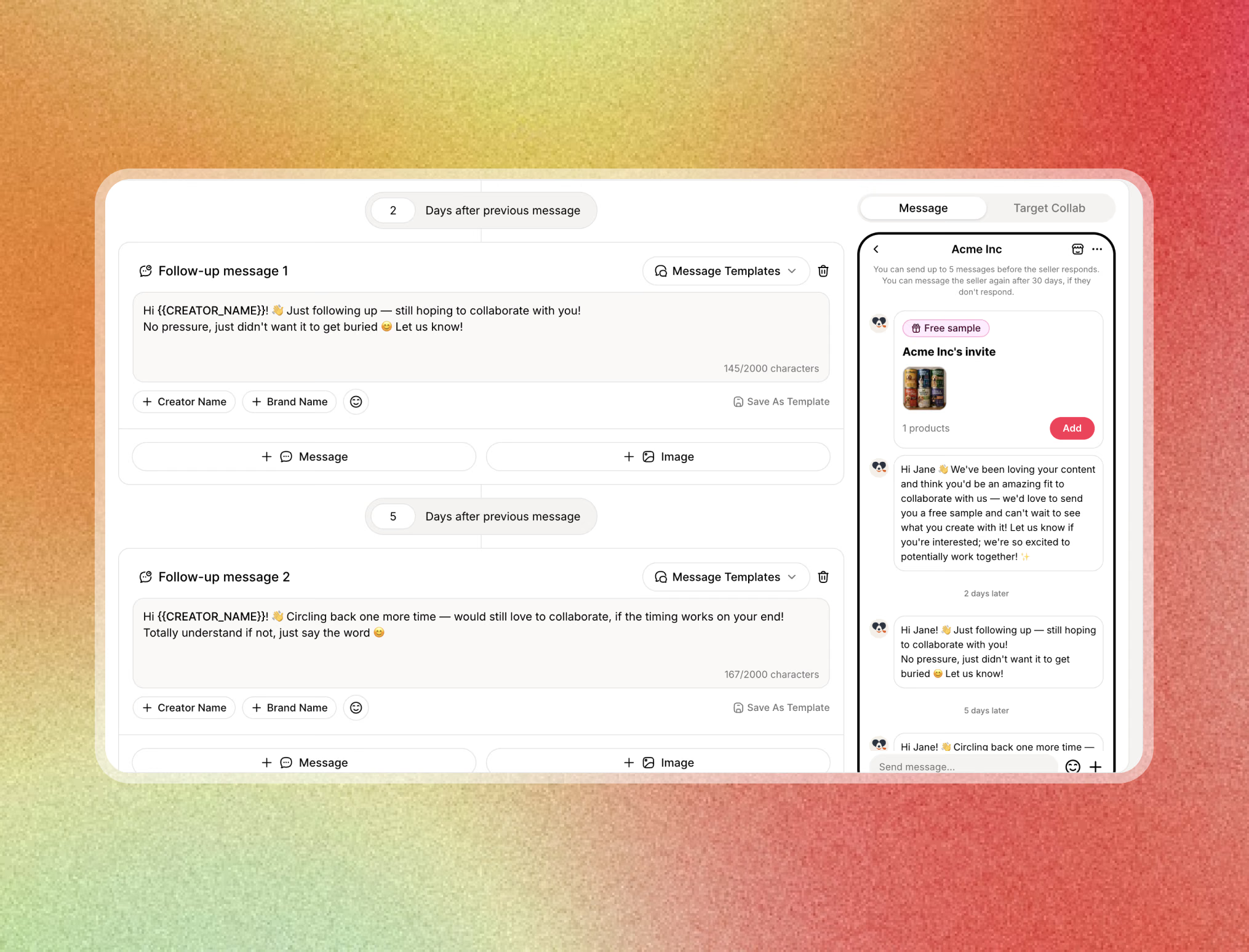
Build the next messages alongside your introduction and choose their delays.
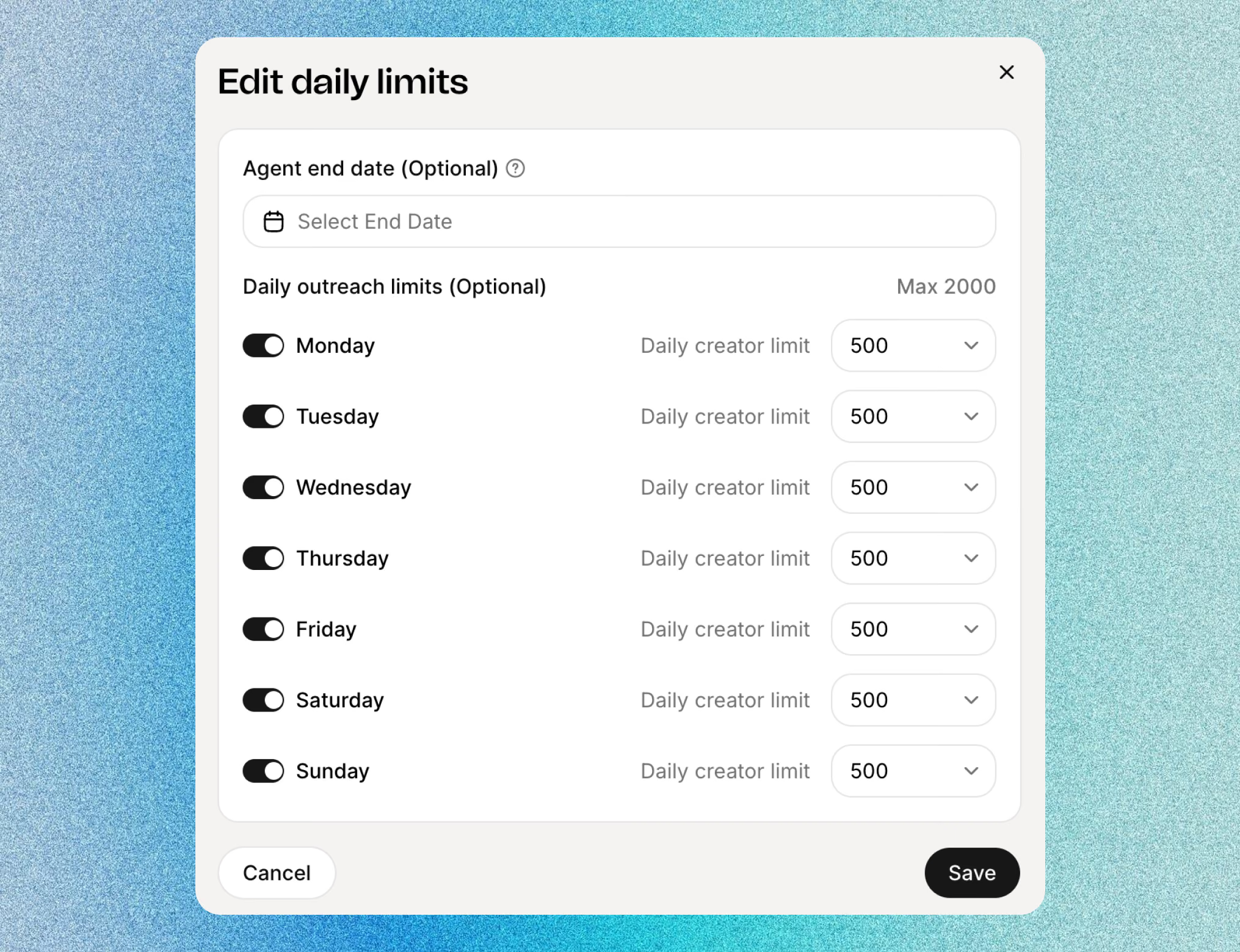
Set a daily limit, sending window, and time zone around your campaign.
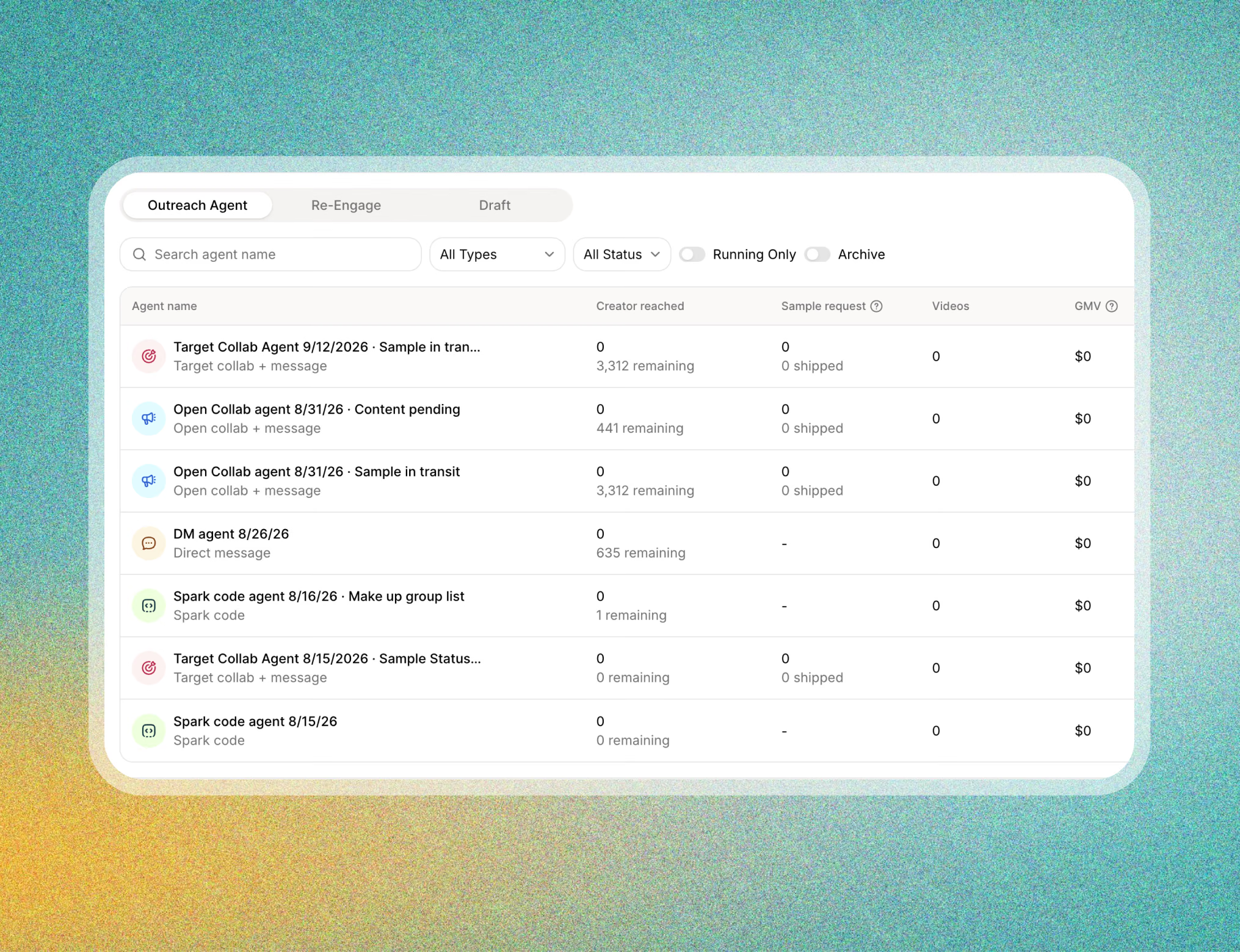
Review Agent status, reach, remaining creators, and replies to guide your next action.
Clear messages. Clear next steps.
Bring your TikTok Shop creator outreach into one workflow, with relevant messages, clear offers, and timely follow-ups. Your Agent organizes the outreach so your team can focus on turning replies into partnerships.
FAQ
A DM Agent organizes creator outreach around a selected audience, a personalized message sequence, follow-up delays, and sending controls. In Quacko, you can review campaign progress and creator replies after launching.
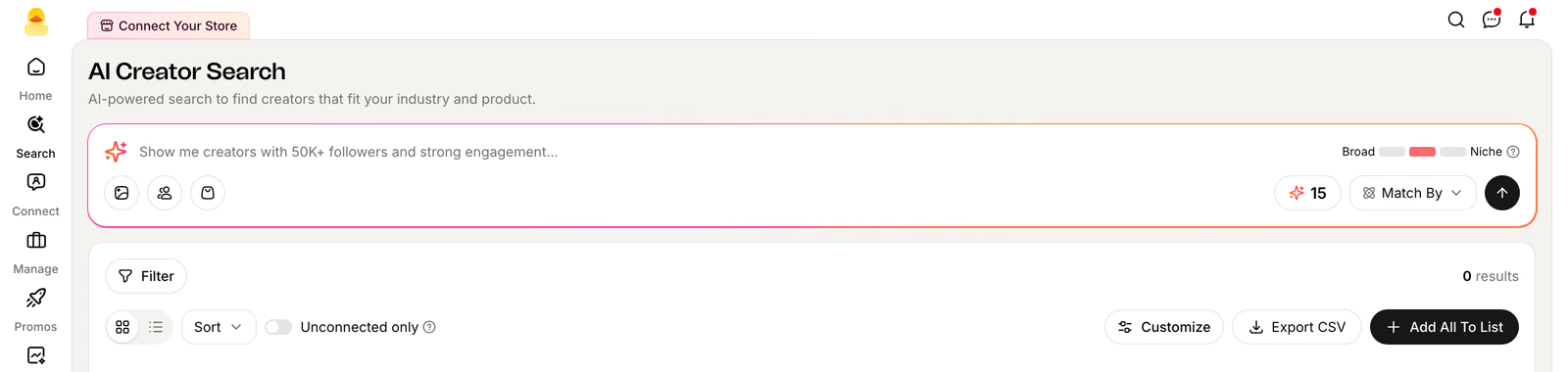
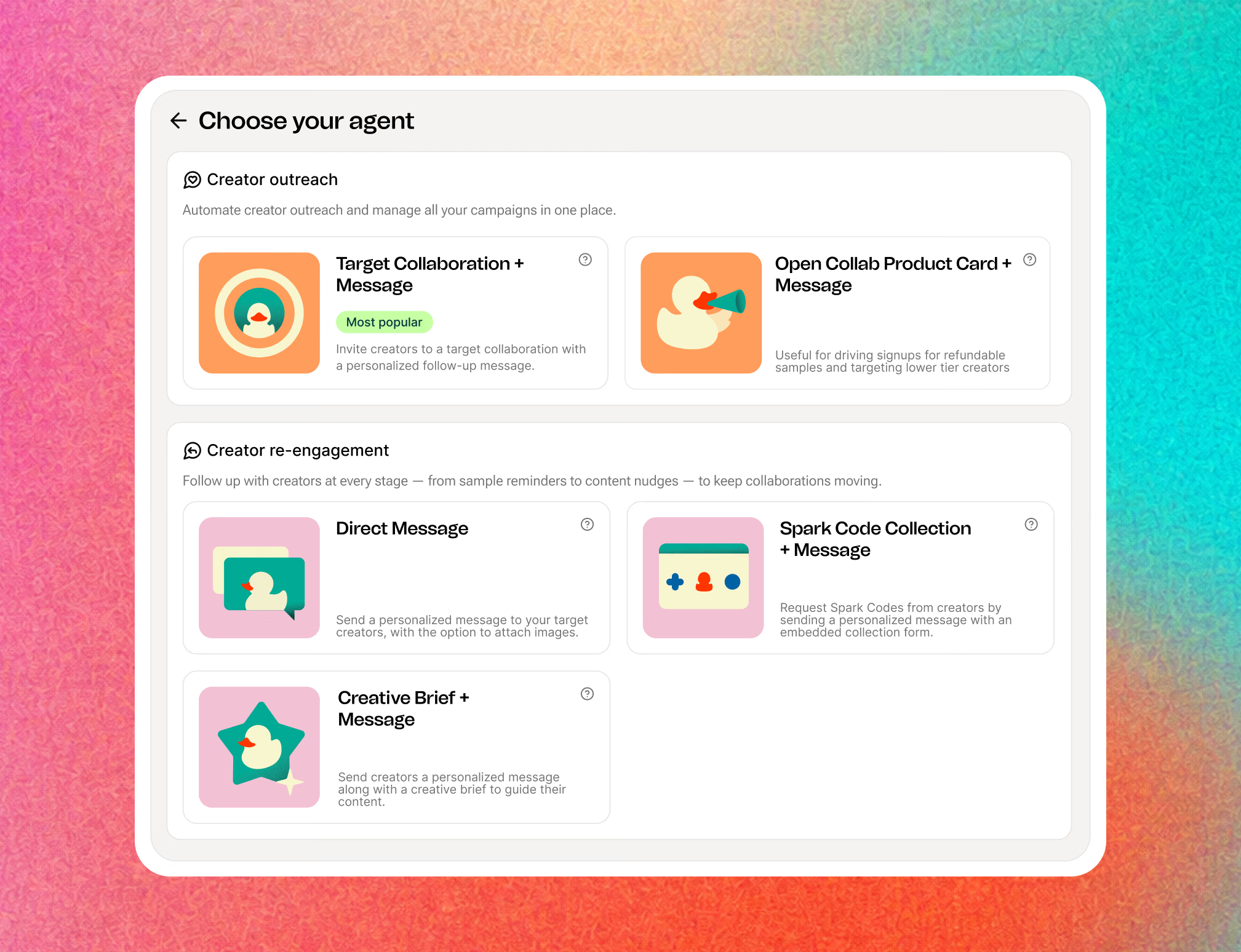
Start a new agent in Outreach and choose Direct Message. Complete Select creators and Message setup, review your sending controls and phone preview, then run the Agent or save it as a draft.
Introduce yourself and your brand, explain the product opportunity, and ask one clear question. Use only confirmed offer details. Insert the creator username using Creator name in the editor, and replace any drafting placeholders before sending.
Add follow-up messages in Message setup and review each delay. Give each message a useful purpose, such as sharing product context or clarifying the next step. Check the editor’s message counter and review replies before deciding on additional outreach.
Yes. Save the setup as a draft and reopen it from the dashboard to continue. For an existing Agent, use Edit and save with Update Agent. Review its status separately to confirm whether it is running or stopped.
Review status, creators reached, remaining creators, and replies in the Outreach dashboard. Open the Agent to inspect Performance, the reached creator list and reply status, and Agent configuration. Read the replies to understand interest and decide on the next action.
See Quacko on your own product and category in a 20-minute walkthrough.
No credit card required.